Memory and Storage
Summary
A file is nothing but a sequence of bytes. What it means is not written in the bytes, it is written in an agreement about how they are arranged: a header at the front says how to read the rest, and then the actual data follows, byte after byte. Whoever knows that arrangement can read any file with their own eyes, and whoever does not sees nonsense. Those bytes have to live somewhere. While the computer runs they live in main memory, millions of tiny circuits that each hold one bit for as long as the power is on. When it is switched off they live on a disk, in flash memory, on a disc or on tape, as a physical state that stays put by itself. Storing always means setting such a state, reading means asking for it, and between all of them the file travels as what it is: the same sequence of bytes.
In this chapter, we address the following questions:
- What is in a file if you do not open it with the program it was made for?
- What is a header for, and what does it contain?
- How does a program find the top left pixel in an image file?
- How does a program tell what kind of file it is looking at?
- Where do the bytes live while the computer runs, and where when it is off?
- What is a bit actually made of in a memory chip, on a disk, on a CD, on tape?
You need this concept for Challenge 4, where a whole file travels through the air for the first time and the receiver has to open it at the other end.
Explanation
Open an image file in a text editor and you get nonsense: the editor reads every byte as a character and shows a dot wherever the byte is not a printable one. Open the same file in a hex editor and you get something sober and very readable: the bytes themselves, one after another, as two-digit hex numbers.
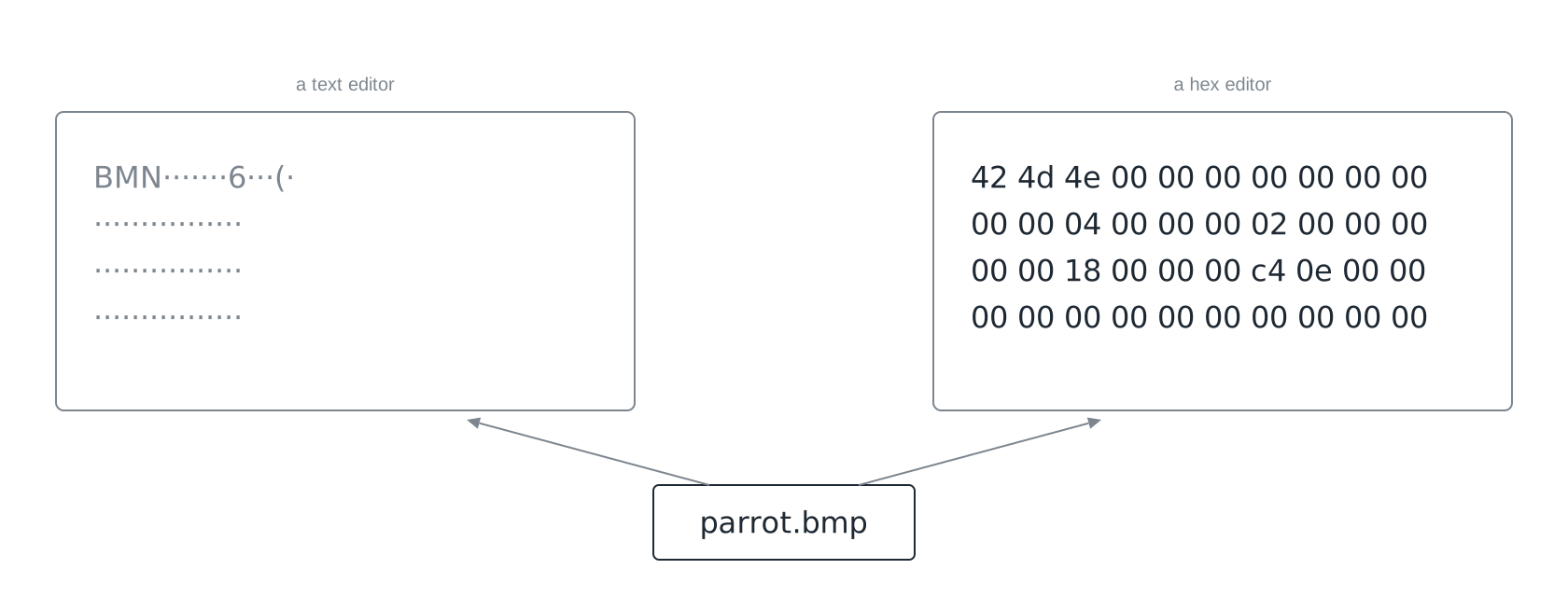
The file is fine in both cases. The bytes have not changed, only the reading rule has. And in that content, once you know the arrangement, everything can be found again: how large the image is, where the pixels start, what colour the first one has.
A file is a sequence of bytes
That is the whole definition, and it holds for every file: text, image, sound, program. A byte has a value from 0 to 255, a file has a length, and the bytes are in a fixed order. There are no pictures on a hard disk and no texts, there are only bytes, and the meaning appears when something reads them. You have seen that in Code Systems and in Abstraction and Layers; here it is about how a file carries its own reading instructions.
The smallest useful example is a bitmap of four by two pixels, 78 bytes long. This is what it looks like in a hex editor; on the left the position of the first byte of each line, also in hex:
0000  42 4d 4e 00 00 00 00 00 00 00 36 00 00 00 28 00
0010  00 00 04 00 00 00 02 00 00 00 01 00 18 00 00 00
0020  00 00 18 00 00 00 c4 0e 00 00 c4 0e 00 00 00 00
0030  00 00 00 00 00 00 00 00 00 00 ff ff ff ff 00 ff
0040  00 ff 00 00 ff 00 ff 00 ff 00 00 ff ff ff
Three parts: a file header of 14 bytes, an info header of 40 bytes, and 24 bytes of pixel data.
The header says how to read the rest
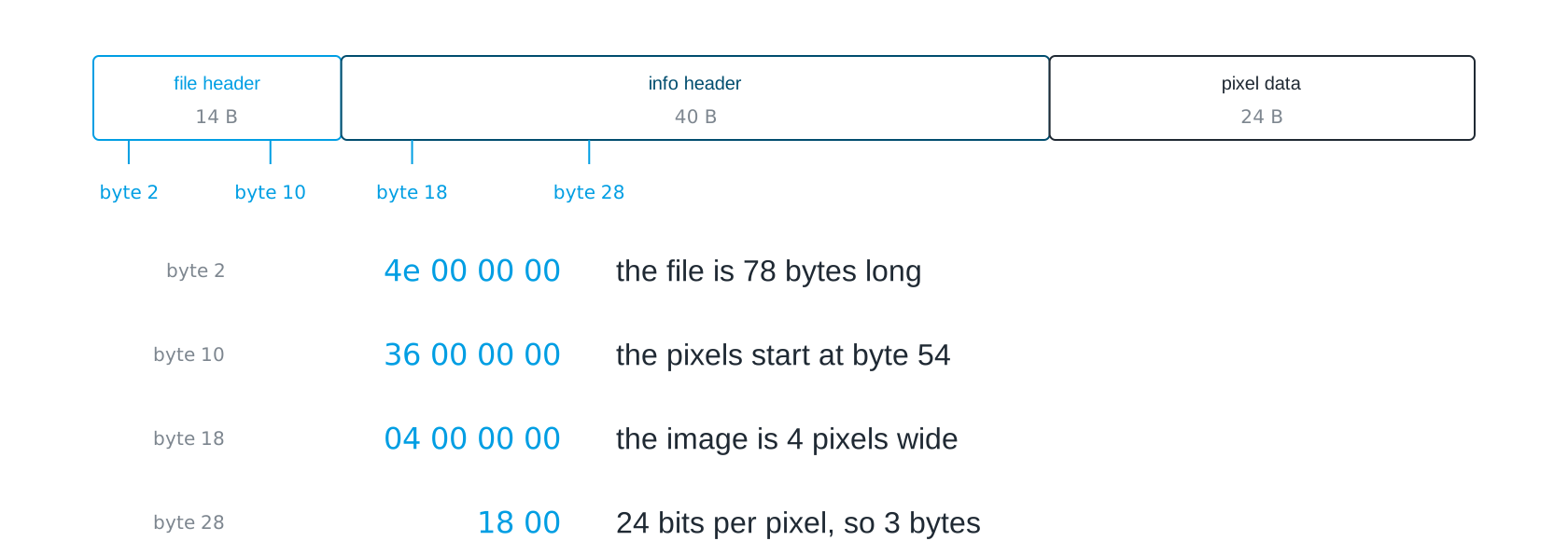
The first two bytes are 42 4d, read as ASCII “BM”. That is the signature of the bitmap format: a program opening a file looks here first. Then four bytes give the size of the whole file, 4e 00 00 00, which is 78. That the 78 comes first and the zeros after it is another agreement of this format: for multi-byte numbers the lowest byte comes first here. At position 10, four bytes say where the pixels begin: 36 00 00 00, so at byte 54. Everything before that is header.
The second part, the info header, starts at byte 14 with its own length (28 00 00 00, 40 bytes) and holds what the program needs in order to draw: the width 04 00 00 00, the height 02 00 00 00, and at byte 28 the colour depth 18 00, so 24 bits per pixel, three bytes. With that the program knows, without having seen a single pixel, that from byte 54 exactly 4 times 2 times 3 equals 24 bytes of image data follow, and that is exactly how long the rest of the file is. The header fields are to the program what the type field and the length field in the frame of Challenge 4 are to your receiver: the announcement of what is coming and how to read it.
The payload: pixel by pixel
From byte 54 come the pixels, three bytes each. The first pixel is 00 00 00, black; the second is 00 ff ff.
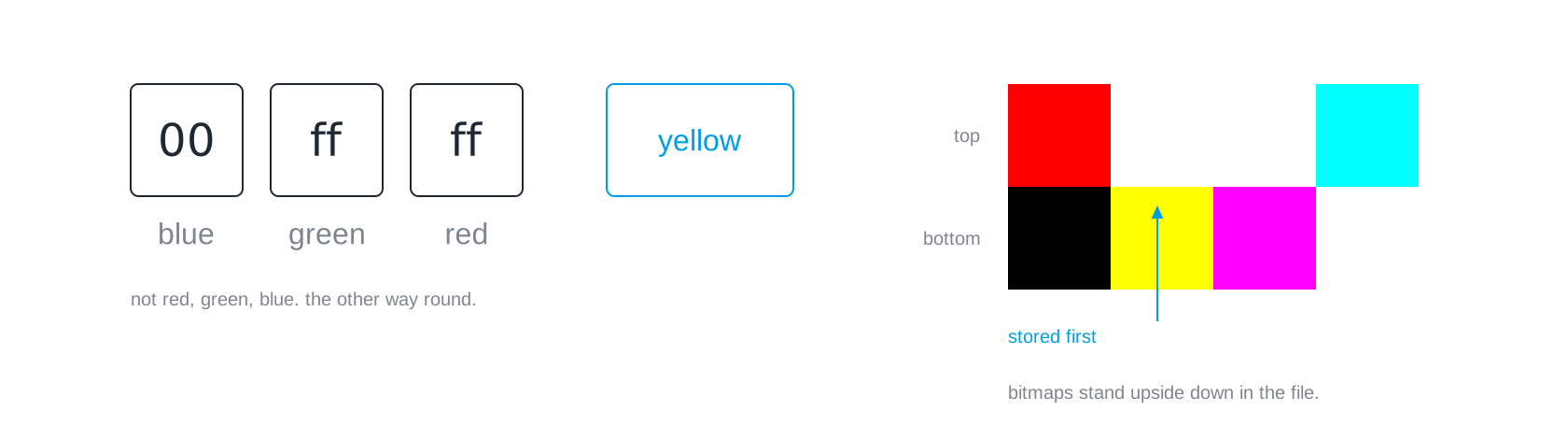
00 ff ff. The three bytes are blue, green and red in that order, so the pixel is yellow; and because bitmaps are stored from the bottom row up, it sits in the lower row of the image.
Anyone who now says “cyan”, because red is off and green and blue are on, is wrong, because this format stores the three parts in the order blue, green, red. 00 ff ff is blue off, green on, red on: yellow. And the first stored row is not the top one but the bottom one; bitmaps stand upside down in the file. The top row of the image only begins at byte 66 with 00 00 ff, a pure red.
Both are arbitrary decisions by people who fixed this format forty years ago. They are binding anyway, because every program that reads bitmaps knows them and follows them. That is exactly what a file format is: not a law of nature but a written agreement that nobody gets to choose any more. You wrote an agreement like that yourselves in Challenge 3.
In the demonstrator Inside a File you can do all of this yourself: one of the three familiar photos as a small bitmap in a hex editor, a click on a pixel shows its three bytes, and every byte can be changed. Change a single byte in the pixel part and one colour component of one pixel changes; the picture is still displayed, only wrong in one spot. Change a byte in the header, the width for instance, and the viewer shows stripes or refuses the file altogether. That is the difference between payload and header: a broken byte in the data is a small injury, a broken byte in the header is a large one. It is also why the hash over everything decides in the final, see Errors and Redundancy.
inside a filea real bitmap in a hex editor: header fields underlined, click a pixel to find its three bytes, then change a byte — and watch the picture obey, or the viewer refuse.LiFi Project · concept demos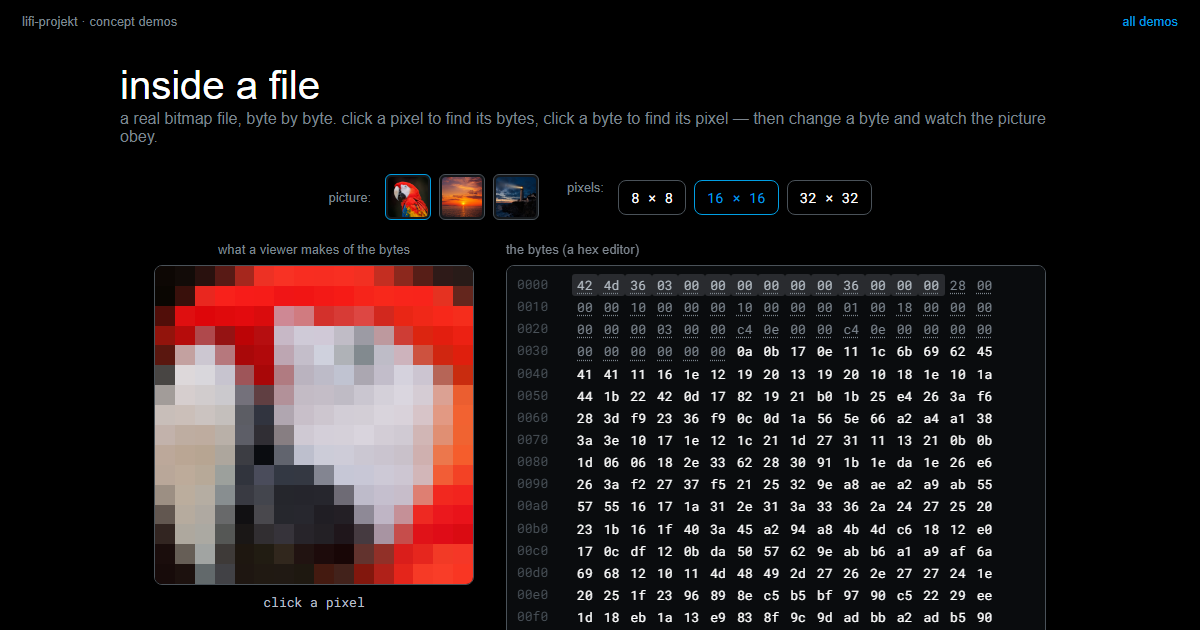
Extension, magic bytes, type field
How does a program tell what kind of file it is looking at? Three answers, and all three are labels next to or in front of the data. The extension .bmp is in the name, not in the file; rename it and the bytes do not change. The magic bytes at the start, here “BM”, are in the file; PNG begins with a fixed sequence of eight bytes, PDF with %PDF. A text file has no magic bytes, it begins with its first letter, and that is why no program can reliably guess its type. The type field in your frame is the third answer: the class decides which number stands for which file type, and the sender sends it along. All three solve the same problem in the same way, because data on its own means nothing.
Where the bytes live while the computer runs
In Logic and Arithmetic you saw that two NOR gates wired into each other make a flip-flop.
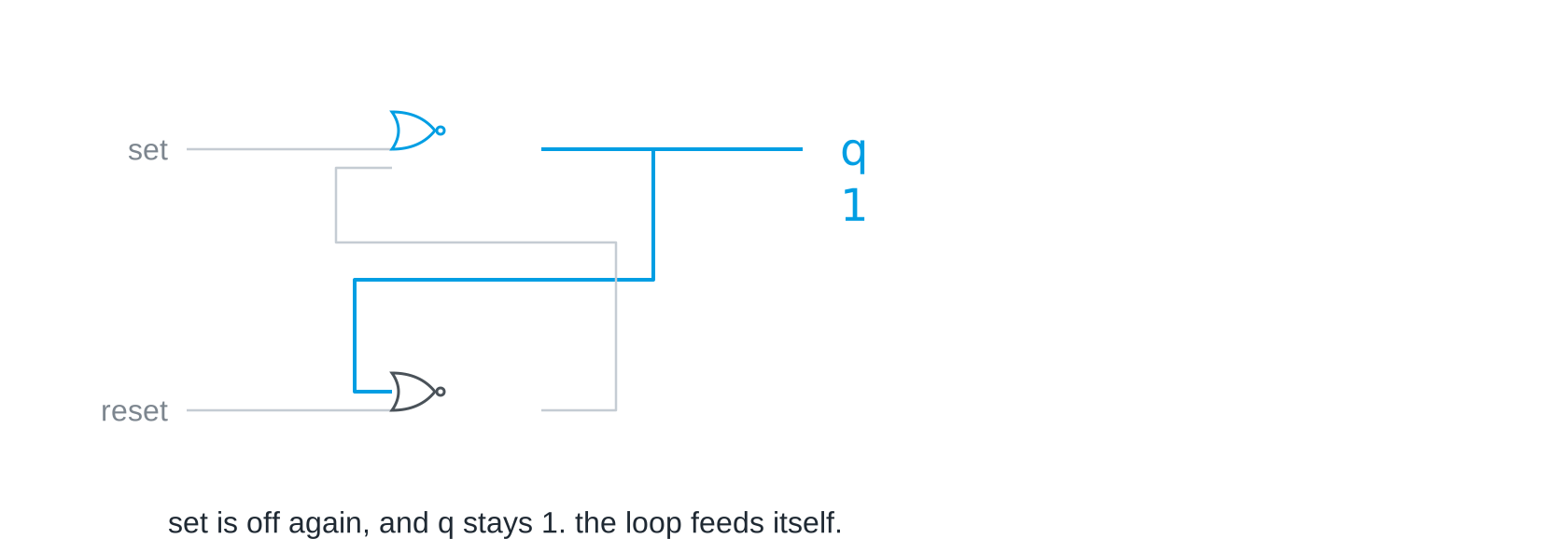
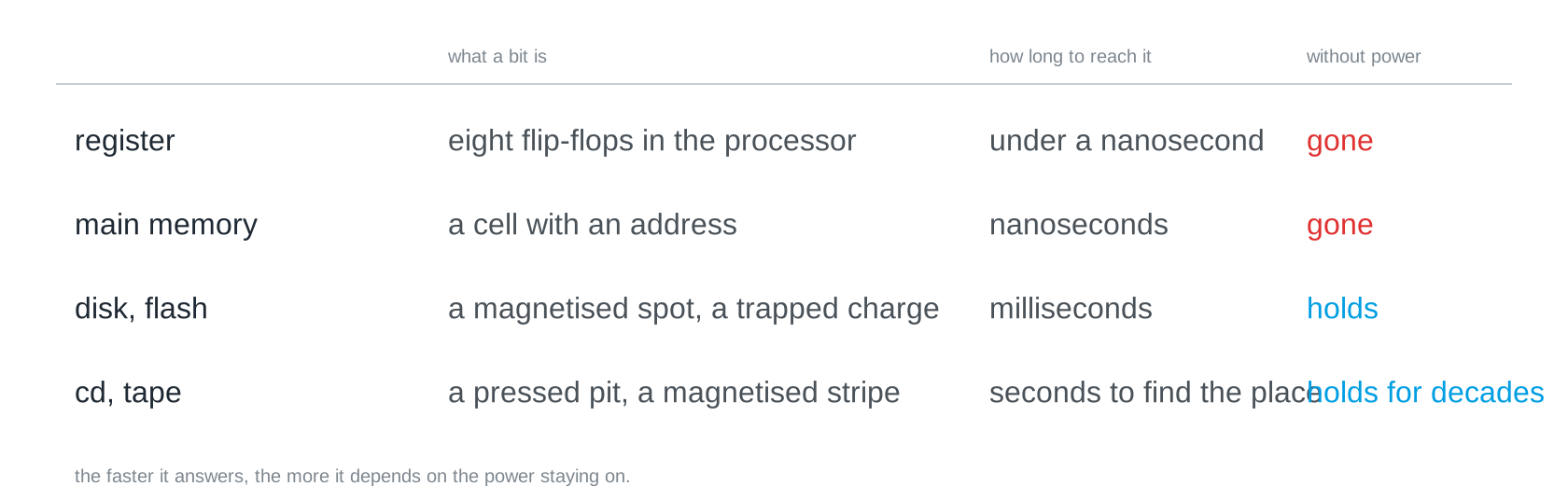
A short pulse on set makes the output 1, and the cross-wiring keeps it there until reset. That is one bit of memory, built from the same switches that add and compare. Eight flip-flops side by side hold a byte, and that is a register, the small fast memory inside the processor. Nothing about the circuit knows whether the byte is a number, a letter or a pixel, it just holds eight states.
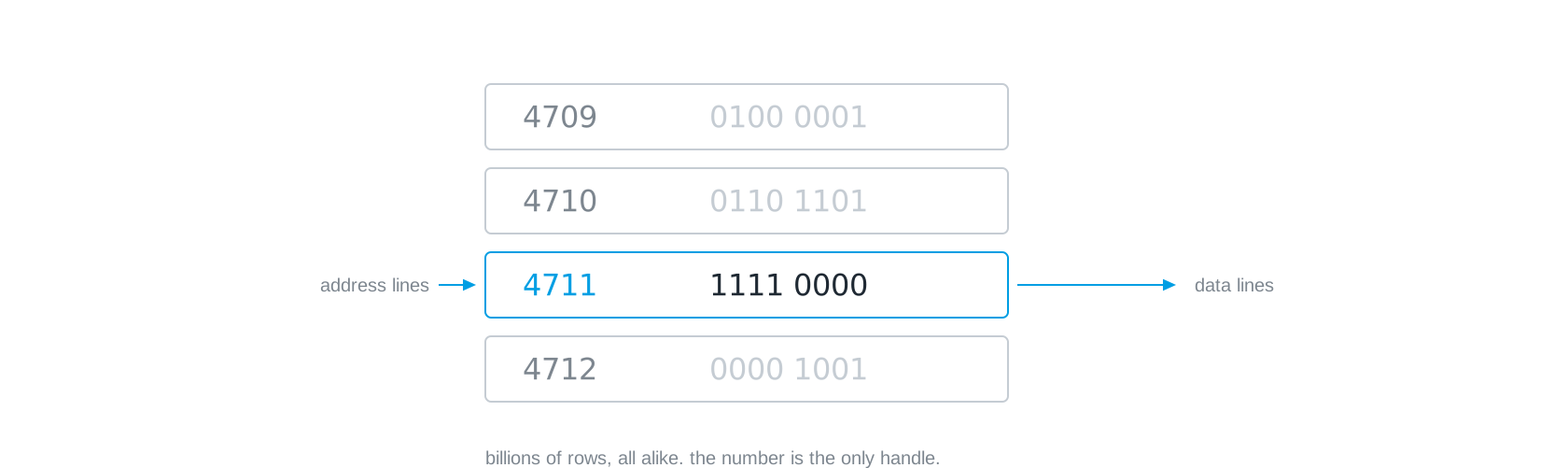
Main memory, the RAM of your laptop, is billions of such cells arranged in rows. Every row has a number, its address. To read a byte, the processor puts the address on one set of wires, the address lines, and the row answers on another set, the data lines; to write, it does the same the other way round. That is why a program never says “the number over there”, it says “the byte at address 4711”. The address is the only handle the machine has.
All of this holds only while the power is on. The flip-flop keeps its bit because its two gates keep feeding each other; cut the power and the loop collapses. That is not a defect but the price of speed: RAM answers in nanoseconds because nothing has to move. It is also why an unsaved document is gone after a crash, and why saving means copying the bytes somewhere that does not need power.
What a bit is made of
Every other kind of storage sets a physical state that stays put by itself, and each one uses a different material.
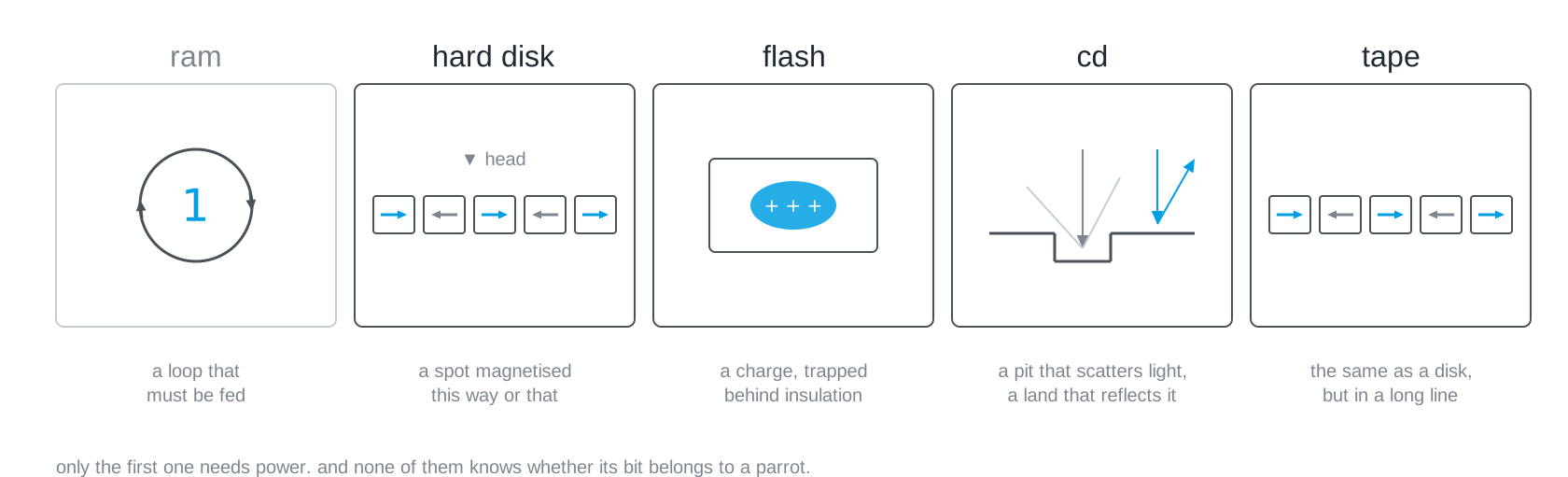
A hard disk stores a bit as the direction in which a tiny spot on a spinning platter is magnetised; a head flying just above the surface flips it to write and senses it to read. Flash memory, in SSDs and USB sticks, traps a small electric charge inside a transistor that is insulated on all sides; the charge stays for years, and reading means testing whether it is there. Magnetic tape does the same as a disk, only in one long line instead of on a circle, which is why it is slow to search and cheap to keep; it is still how archives store petabytes for decades. A floppy disk was the same idea in a small square envelope. And a CD works differently enough to be worth its own look.
A CD reads bits with light
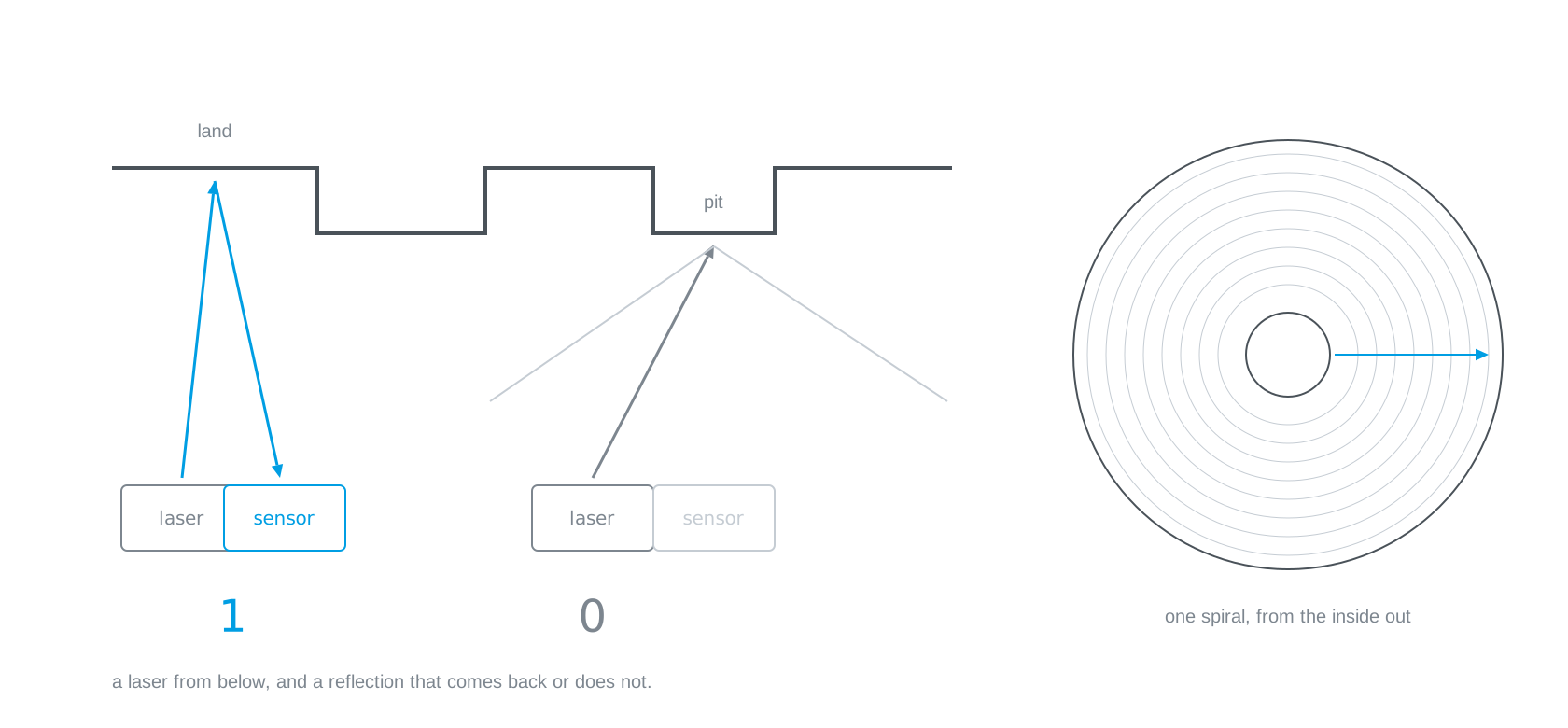
The surface of a CD carries one single spiral track that runs from the inside outwards, and along it are flat stretches, called lands, and tiny pressed depressions, called pits. A laser shines from below. On a land the light reflects straight back into the sensor; on a pit it scatters away and almost nothing comes back. There is your bit, and there is your link: a lamp, a sensor, and a reflection that either arrives or does not. Your device does exactly the same thing, except that its sender is an LED you control and the CD’s sender is a pit that was pressed years ago.
A CD also shares something else with your project. Scratch one and it usually still plays. That is not luck, it is a lot of redundancy built in on purpose: whoever designed the format assumed that discs get scratched and paid for it in advance, exactly like the torn sticker in Errors and Redundancy.
There is one more thing these older media teach, and it has nothing to do with physics. A floppy disk from 1995 still holds its magnetisation perfectly well; what is missing is a drive to read it, and often the program that knows the format. The physical state on its own is not information yet. The agreement that reads it has to survive too, and that brings us back to the beginning of this page.
What saving means
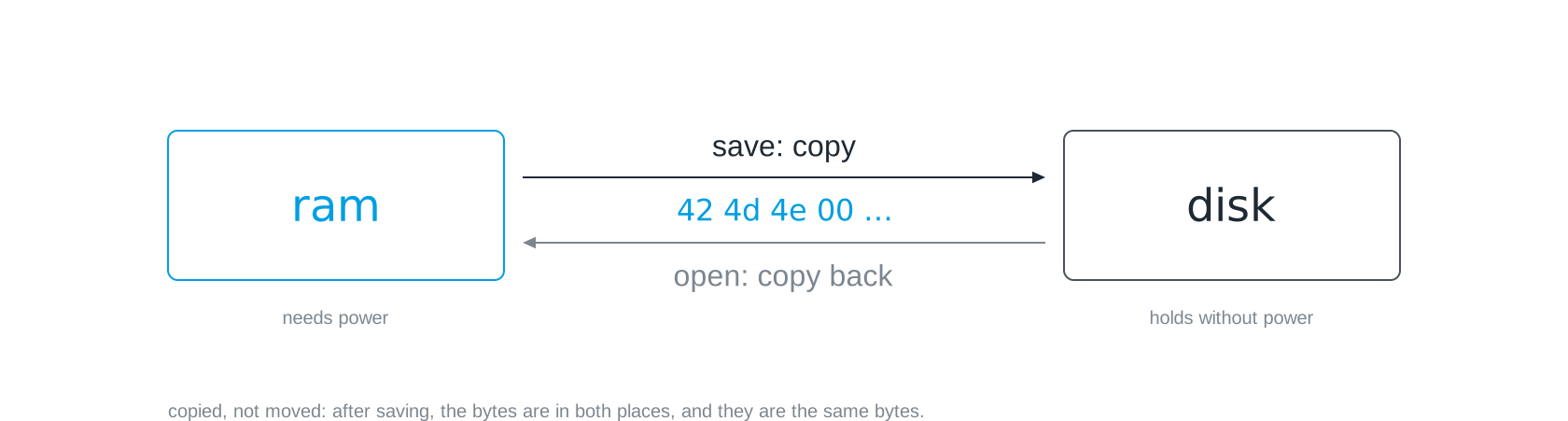
When you click “Save”, the bytes are copied from main memory into a place that keeps its state without power. They are copied, not moved: afterwards they are in both places. And main memory does not write itself away at intervals; some programs make their own backup copies, but that is a decision of the program, not a property of the memory.
On your link
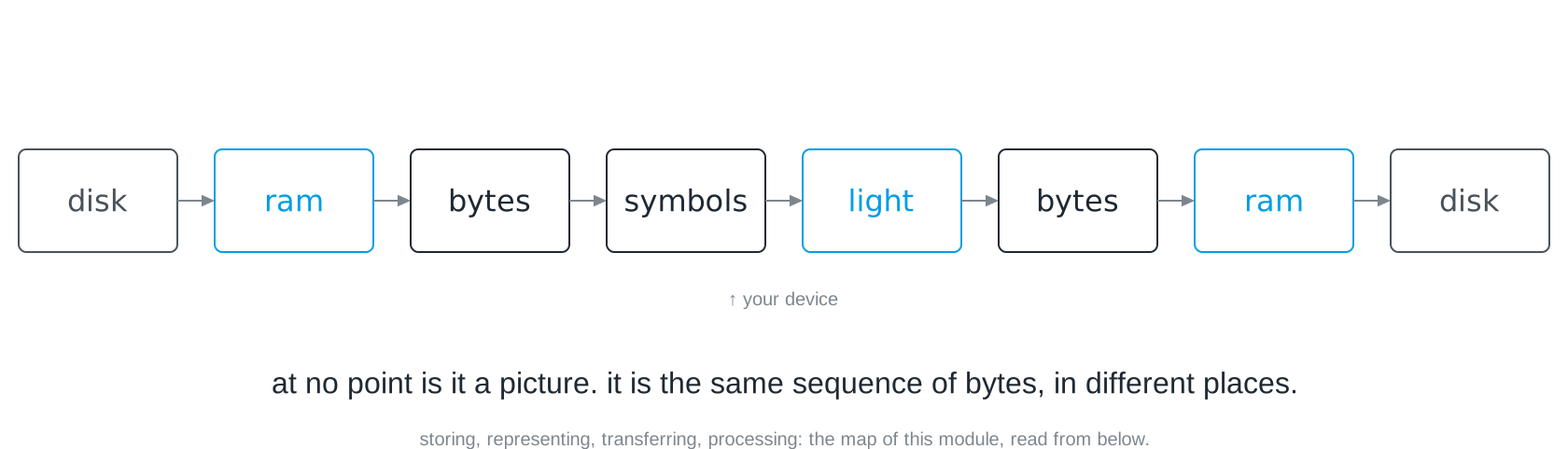
When you send the photo over your light link, the bytes leave RAM one by one, become symbols, become light, and end up in the other computer’s RAM, from where they are written to its disk. At no point does the picture exist as anything but bytes, and at no point do the bytes care where they are. That chain is also the map of this module, read from below: storing, representing, transferring and processing, all in one single operation.
Three things follow for Challenge 4. Read the file as bytes and not as text, or the character encoding will change them under your hands. Send the header too, because without it the other side cannot read anything. And check the hash at the end, not the appearance: “it displays” proves nothing.
Slides
The slides for this concept, right here. Page through them with the buttons in the top right corner, or click into the slides and use the arrow keys.
Practice questions
Try questions in the exam format here, with the answer and its reasoning shown right away.
Further reading
- David Macaulay: The Way Things Work Now. Houghton Mifflin Harcourt 2016, part 5 “The Digital Domain”, chapter “Storing Bits”. Memory chips, flash, hard disks, CDs and barcodes, all in drawings.
- Charles Petzold: Code. The Hidden Language of Computer Hardware and Software. 2nd edition, Microsoft Press 2022. Builds a flip-flop from gates and a memory from flip-flops, one step at a time.
- Kryder, Mark H.; Kim, Chang Soo: After Hard Drives, What Comes Next? IEEE Transactions on Magnetics 45(10), 2009. Why the physical limits of each medium decide what replaces it.